
Evaluating Free and Open Source Video Players for Desktop Use
When picking a free desktop video player, start by checking what it can actually do during playback. Look for support for common actions like pausing and resuming at the exact spot you left off, adjusting playback speed without distorting audio, and displaying subtitles from separate files or embedded tracks. Some programs allow frame-by-frame stepping for closer inspection of a scene, while others handle basic zooming or rotation for videos shot sideways. Test these with everyday files such as a recorded lecture or a home movie from a phone to see if the controls feel responsive.
Another practical check involves audio options. Can the player change volume levels per track or apply simple equalization for clearer speech? Does it let you select different audio streams if the file contains multiple languages? These features matter when dealing with mixed content like documentaries or music videos that include commentary tracks.
Checking Compatibility Across Systems and File Types
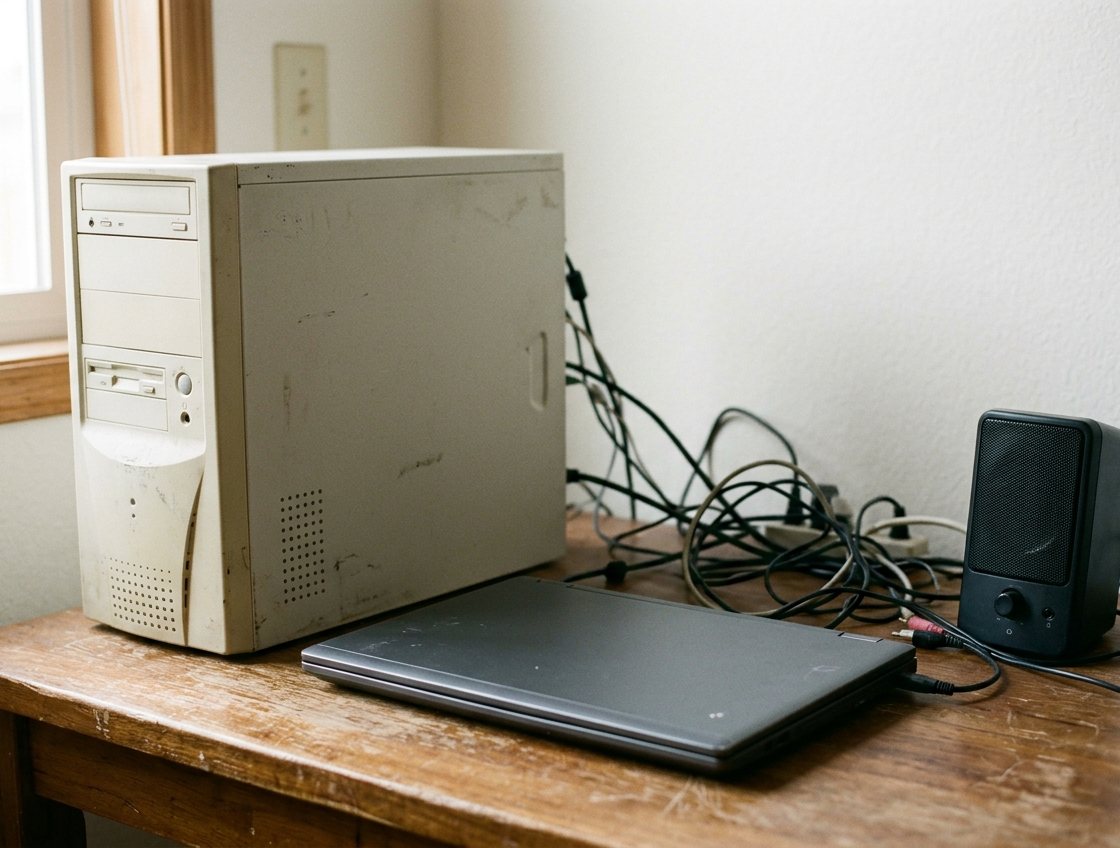
Cross-platform support determines whether the same player works on different computers without extra setup. Some options run on Windows, older Linux distributions, and even basic macOS versions through the same code base. This matters if you move files between machines at home or share a computer with family members using varied setups.
Codec handling often requires attention because video files come in many container formats. A player that relies on system codecs might play common types like AVI or MP4 right away but struggle with less frequent ones unless you add extra components. Open source versions sometimes bundle decoding libraries that cover a wider range without separate downloads, though results depend on the specific build and updates available.
In practice, try opening a mix of files from different sources. A file recorded on one camera might use a newer compression method that older players reject outright. When support falls short, users sometimes install additional codec packs, but this adds steps and can affect stability on certain systems.
Customizing the Display and Organizing Playlists
Interface adjustments help match the player to personal habits. Some allow changes to button layouts or color schemes through simple configuration files, while others limit changes to window size and full-screen behavior. Font size for on-screen information like time remaining can often be increased for easier reading on larger monitors.
Playlist management comes into play when handling multiple files in sequence. Basic lists let you add and remove items by dragging, and a few programs save these lists as separate files for reuse later. More advanced handling includes options to shuffle or repeat specific sections, or to sort by file name or date. For someone keeping a collection of short clips, this reduces the need to hunt through folders each time.
A short list of common adjustments includes:
– Changing subtitle appearance and position
– Setting default folders for opening files
– Assigning keyboard shortcuts for frequent actions
These tweaks stay optional, yet they make repeated use less repetitive over time.
Performance on Basic Hardware
Lightweight players often use fewer system resources, which shows up when running on older computers with limited memory or slower processors. Video playback can remain steady at standard resolutions without causing the whole system to slow down during other tasks like browsing or file copying. Higher resolution files may still demand more from the graphics hardware, so testing with actual files reveals the practical limits.
Some players offer options to lower video quality on the fly or skip certain visual effects to keep playback consistent. This proves useful on laptops running on battery power where full processing might drain energy faster. Differences appear most clearly with longer videos or when several programs run at once.
Users sometimes notice that players built with simpler interfaces start faster and close without leaving background processes. On machines with integrated graphics rather than dedicated cards, avoiding heavy themes or overlays helps maintain smooth output. Trial with typical daily files shows whether a given program fits the available hardware without requiring upgrades.